Application interface in French — English UI planned in a future release
V1.1 — 2026-05-17
Table of Contents
1. Getting Started
1.1 Opening the application
1.2 Interface overview
1.3 Edit mode vs Preview mode
2. Creating a Complete Briefing
2.1 Metadata — ⚙ tab
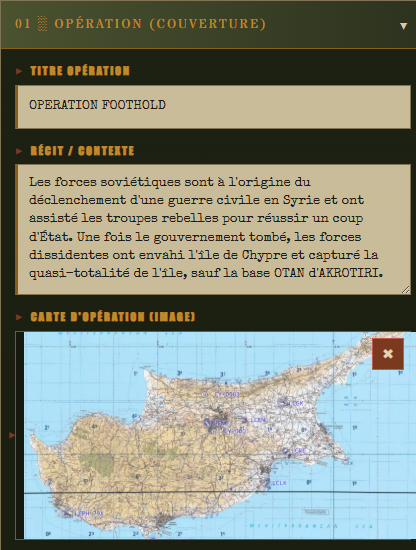
2.2 Cover page — ◕ tab
2.3 Tactical situation — ▣ SITAC tab
2.4 Mission overview — ✈ tab
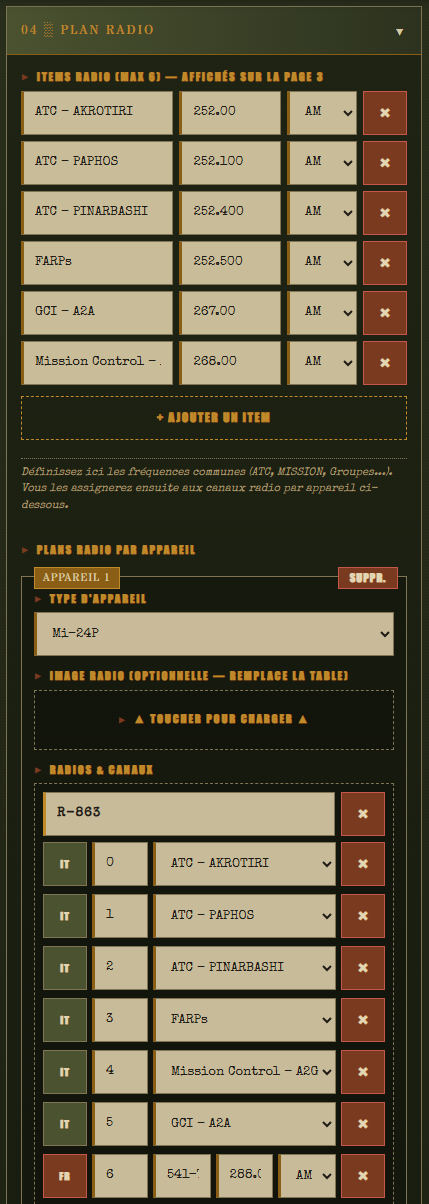
2.5 Radio plan — 📻 tab
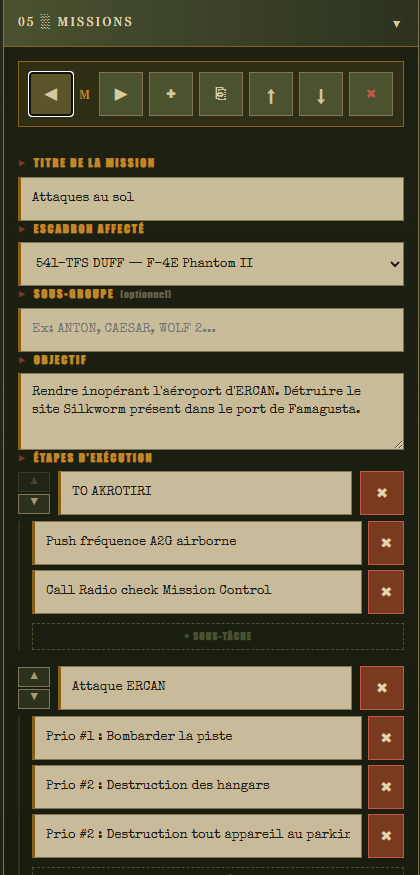
2.6 Individual missions — ⊕ tab
2.7 Crew — 👤 tab
2.8 Charts — 🗺 tab
2.9 Free-form Appendices — 📎 tab
3. Saving and Resuming a Briefing
3.1 Automatic local save
3.2 Exporting a briefing as JSON
3.3 Importing an existing briefing
3.4 Starting fresh
4. Exporting to PDF
4.1 Preview mode verification
4.2 Exporting to PDF (Windows / macOS)
4.3 Exporting to PDF on Android
4.4 PNG kneeboard export
4.5 Best practices
5. Wing Configuration (Admin)
5.1 What is a wing config?
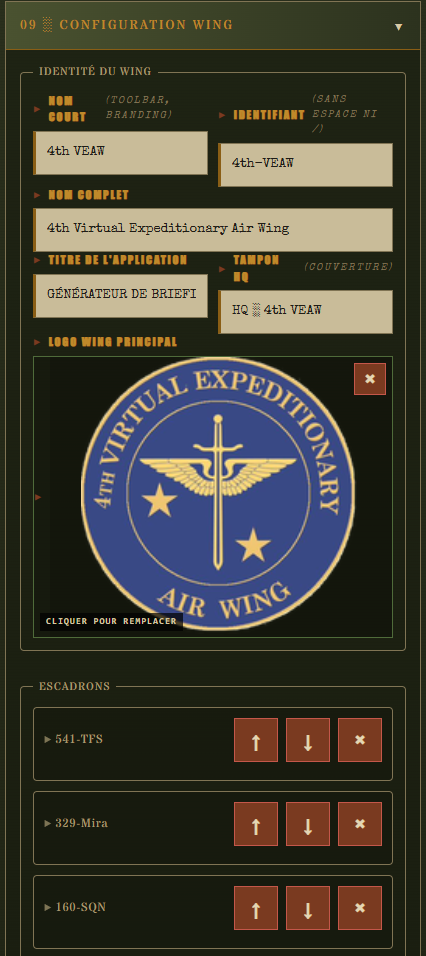
5.2 Editing the wing identity
5.3 Managing squadrons
5.4 Loading logos
5.5 Exporting, importing, resetting
6. FAQ and Tips
7. Appendix — Credits and Licenses
01 Getting Started
1.1 Opening the Application
No installation, no server, no account required. Double-click DCS_World_Briefing_Generator.html and you are ready to go. The application runs entirely in your browser, offline.
Recommended browser: Chrome (or any Chromium-based browser). PDF output is cleanest in Chrome, and that is the primary target platform.
Firefox and Safari work for editing, but may behave differently when printing.
On Android tablets, copy the HTML file to your device (USB cable, Drive, email…) and open it with Chrome.
1.2 Interface Overview
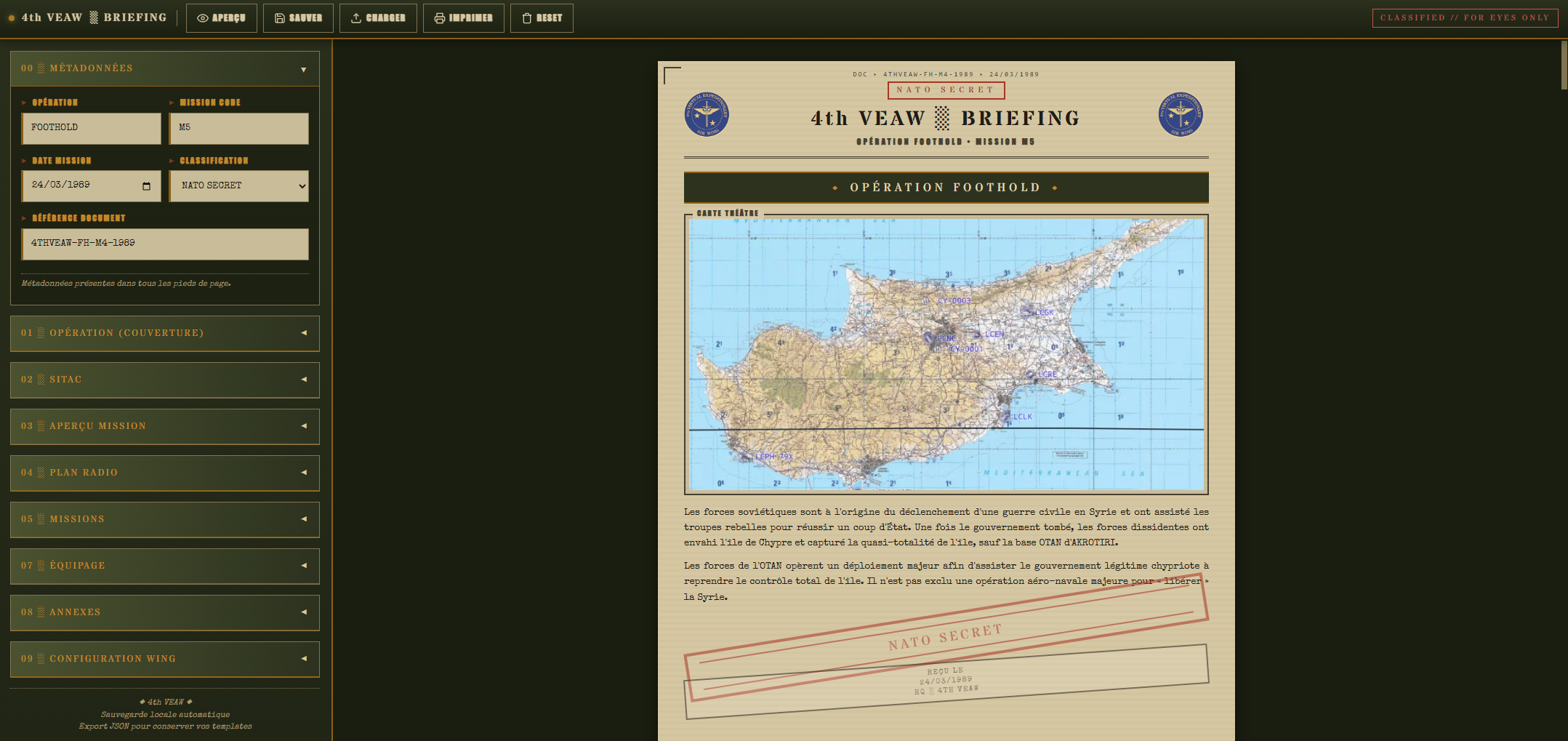
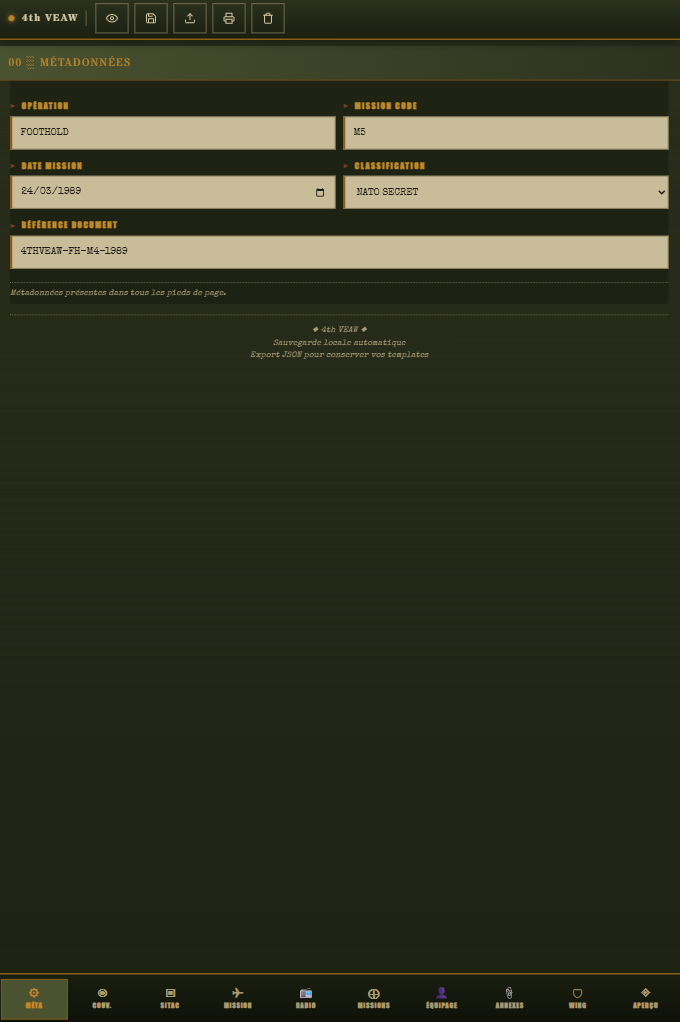
When the application opens, you are in edit mode. The interface is split into two simple zones:
At the top, the toolbar — your wing name on the left, the main action buttons on the right. Below it, the tabs that give access to each section of the briefing.
Free illustrated content at the end of the briefing
🛡
Wing
Wing configuration (admin section)
◈
Preview
Print-ready rendering of the briefing
1.3 Edit Mode vs Preview Mode
The application has two modes, and switching between them takes a single click:
Edit mode — you fill in the forms. This is where all the work happens.
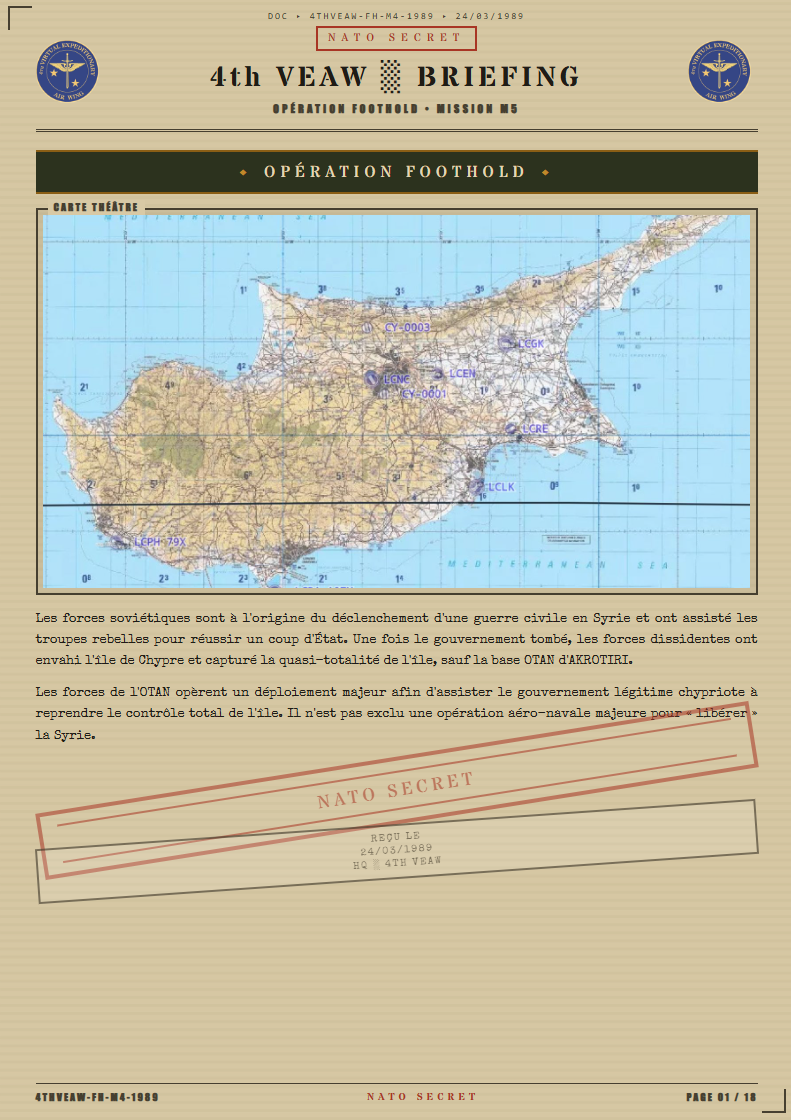
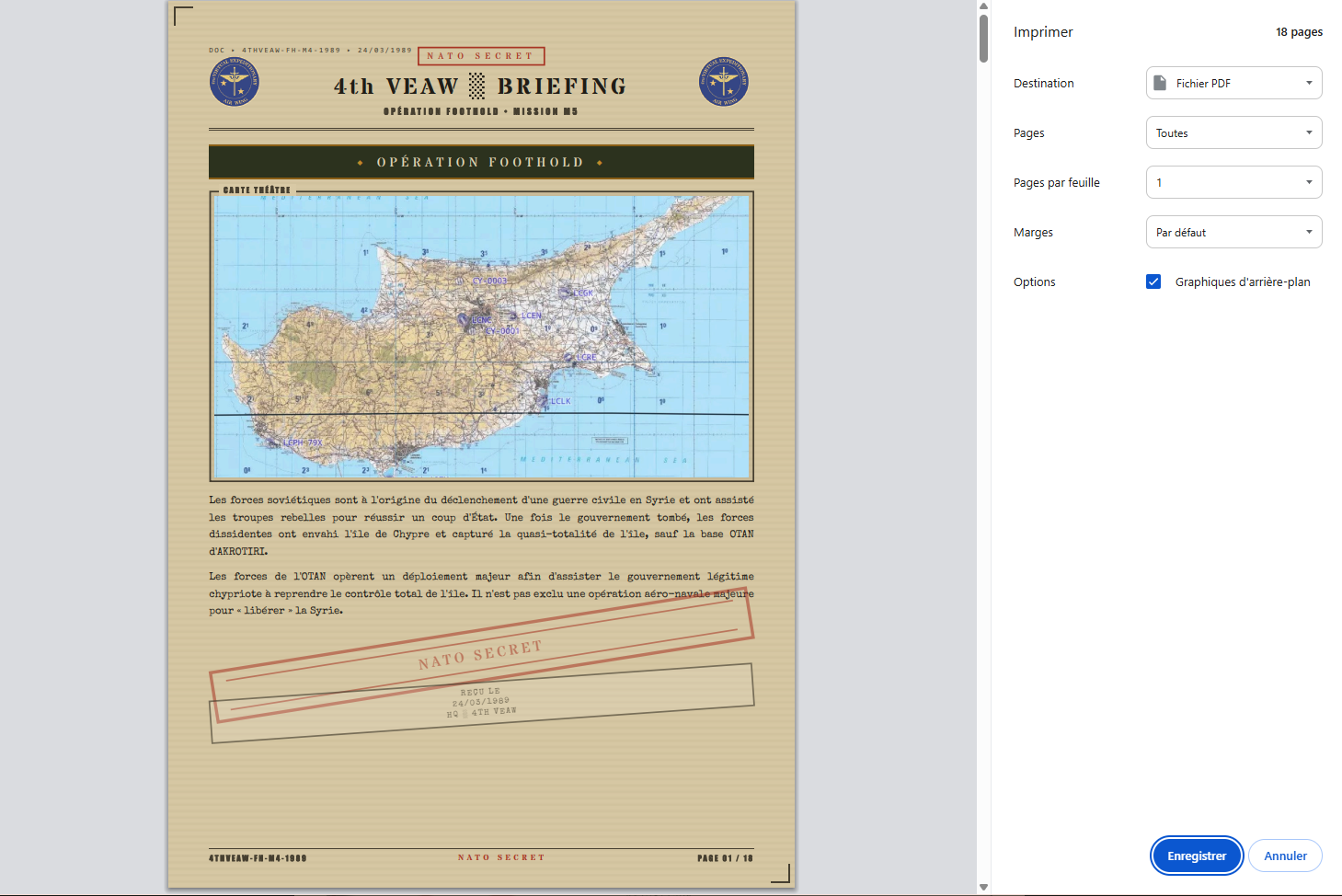
Preview mode — the briefing is displayed in A4 format, exactly as it will print. No forms, just the final rendering.
To switch: click the ◈ Aperçu tab directly.
⤢Preview mode — what you will get in the final PDF
02 Creating a Complete Briefing
We will walk through the tabs in order, left to right. That is how a briefing naturally builds up, and it is the best way to make sure nothing gets missed.
2.1 Metadata — ⚙ Tab
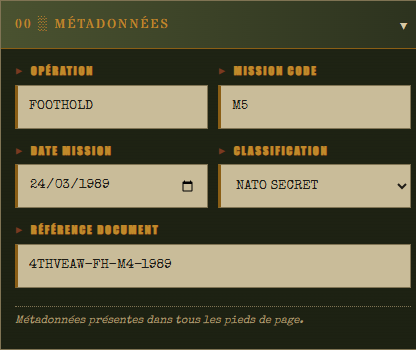
These are the header fields that appear in the footer of every printed page. A few fields, quickly filled.
Operation — the operation name (e.g., “IRON DAWN”).
Mission code — a short code identifying the sortie (e.g., “ALPHA-7”).
Mission date — free-form (e.g., “14 JAN 2025 / ZULU”).
Classification — the fictional classification level displayed on every page: CONFIDENTIEL DÉFENSE, SECRET DÉFENSE, TRÈS SECRET, NON CLASSIFIÉ, NATO RESTRICTED, NATO SECRET.
Document reference — document number or internal reference (e.g., “4VEAW/OPS/2025-001”).
2.2 Cover Page — ◕ Tab
The first page of the printed briefing. This is where you set the scene for everything that follows.
Radio items (max 6) — frequencies common to all pilots: primary ATC, mission frequency, guard… These appear on page 3 of the printed briefing.
Per-aircraft radio plans — for each aircraft type in use (F-16C, F/A-18C, Mi-8…), define the radios and their preset channels. You can also load an image (a screenshot of the in-game radio preset) to replace the generated table.
2.6 Individual Missions — ⊕ Tab
Often the longest section to fill in — and the most personalized. Each pilot or crew can have their own mission card.
The Crew tab generates an order of battle (ORBAT) page in the briefing — but only if you actually add pilots here. Leave it empty and no crew page is generated.
Organize pilots into groups (flight, section, squadron…).
Each group lists pilots with their callsign, rank, and optional notes.
2.8 Charts — 🗺 Tab
The Charts tab lets you add airport charts to the briefing. These charts are typically approach, taxiway, or communication diagrams downloaded from sources such as Chartfox or official aeronautical publications.
For each chart, you fill in:
A title (e.g., “LFMN — ILS RWY 04R”)
An image (PNG or JPEG) loaded by drag-and-drop or via the selection button
An optional comment to annotate or provide context for the chart
The + Add a chart button lets you add as many charts as needed. Charts appear in the final briefing in the order they were entered.
The Free-form Appendices tab fills the role of the Appendices tab in v2.0.0: it lets you add free illustrated content at the end of the briefing — diagrams, reference notes, photos, enemy OOB, etc.
Good news: there is nothing to do. The application continuously saves your current briefing to browser local storage (localStorage). Close the tab, shut down the PC, come back the next day — your work is still there.
3.2 Exporting a Briefing as JSON
The JSON export is the permanent save — a file you can archive, share with a squadronmate, or reload six months later.
On Android with Chrome, the Imprimer (Print) button opens the native Android print system or share menu directly:
Tap Imprimer (Print) in the toolbar.
Select “Save as PDF” as the destination.
Same settings as the desktop version (scale 100 %, backgrounds enabled, A4).
4.4 PNG Kneeboard Export
In addition to the standard PDF export, the generator produces a PNG export optimised for DCS kneeboards — the virtual kneepads displayed in-game during a flight.
To export as PNG kneeboard:
Click the Imprimer (Print) button in the toolbar
In the export modal, select the PNG kneeboard option (default: PDF)
Check the pages to export in the list shown (all pages checked by default)
Click Export
A ZIP file is generated, containing one PNG per selected page. Each PNG is sized to standard DCS kneeboard ratios.
Prepare early. A briefing done the evening before is a briefing you have time to review and fix.
Keep the exported PDF. It is the mission archive, and it comes in handy if a squadronmate missed the live brief.
Share the JSON, not the PDF, if another pilot needs to edit the briefing.
05 Wing Configuration
5.1 What Is a Wing Config?
The wing configuration is the set of data that personalizes the app for your virtual wing:
The name and identity of the wing — what appears in the toolbar, page headers, and footers.
The list of squadrons with their names, callsigns, and logos.
The main wing logo displayed on the cover page.
The HQ stamp shown on the cover page.
Once configured, this config applies to all briefings created with that installation. It exports to a single JSON file for easy distribution to every pilot in the wing.
Click + Ajouter un escadron (Add a squadron) to create a new squadron.
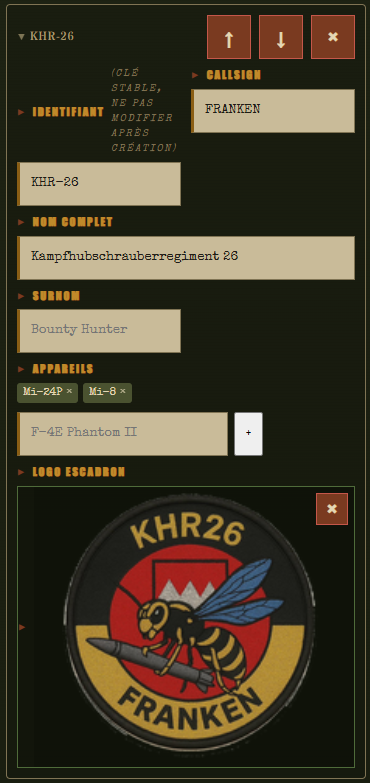
Each squadron entry includes: an ID (e.g., “541-TFS”), a callsign (e.g., “DUFF”), a full name, an optional nickname, the aircraft types it flies, and an optional logo.
Click an existing card to expand, edit, or delete it.
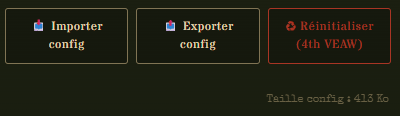
📤 Exporter config (Export config) — downloads the current configuration as a JSON file.
♻ Réinitialiser (Reset) — restores the example wing configuration bundled with the app.
06 FAQ and Tips
I accidentally closed the tab. Is my briefing lost?
No. The automatic save (localStorage) kept everything. Simply reopen DCS_World_Briefing_Generator.html in the same browser — your work is there. Exception: if you cleared browser data or moved the HTML file since then, the briefing is gone. Hence the importance of regular JSON exports.
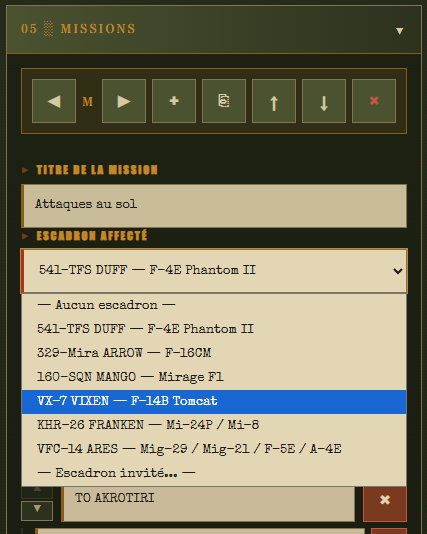
My squadron does not appear in the mission selector.
The selector only lists squadrons defined in the 🛡 Wing tab. Make sure at least one squadron is configured there. If you just imported a wing config, reload the page. A warning toast appears at the bottom of the screen to flag the issue.
The PDF has blank pages inserted between sections.
This happens when a section overflows the A4 page height. In Chrome (Ctrl+P), verify that margins are set to “None” and scale to 100%. If it persists, shorten the content slightly — an overly long context paragraph or an objective list with too many items.
What size should logos be?
Transparent PNG, 400×400 px or larger, under 200 KB where possible. The app scales automatically, but small logos will appear blurry when printed. Avoid JPEG — compression artifacts are visible on the kraft background.
Can I use the app on multiple PCs with the same config?
Yes. Copy the HTML file to the other PC. Export your wing config from the first PC (📤 Exporter config) and import it on the second (📥 Importer config). Same workflow for in-progress briefings — JSON export on one PC, import on the other.
The kraft background does not appear in the PDF.
In Chrome’s print dialog, enable “Background graphics”. Chrome disables backgrounds by default to save ink — you need to re-enable it manually each time you print.
Can we fill in the briefing as a team at the same time?
No — the app is designed for local, single-author use. The collaborative workflow is: one author prepares, exports the JSON, shares it on Discord or Drive, and the others load it for review.
General Best Practices
Prepare early. A briefing done the evening before is one you have time to review and correct.
Keep a template JSON. A briefing with the wing configured and common radios pre-set — reload it at the start of each mission and save ten minutes.
Use consistent file naming.OPNAME_YYYYMMDD.json will save you when searching your archives six months from now.
Include the wing config when sharing. If you send a briefing JSON to someone with a different wing config loaded, the squadrons will not display correctly.
07 Appendix — Credits and Licenses
Application
The DCS World Briefing Generator is a community tool developed for DCS World virtual wings. It is freely distributed for personal and community use within virtual wings.
Embedded Typefaces
Font
Usage
License
Stardos Stencil
Titles, section headers, branding
Open Font License (OFL)
Special Elite
Application body text (typewriter style)
Apache License 2.0
DCS World
DCS World is a product of Eagle Dynamics SA. Aircraft names, theater names, and all DCS World-related elements are the property of their respective rights holders. This tool makes no claim to any of them.
This Guide
Distributed with the application, in the same spirit: free use, non-commercial, for the community.